
You can remove powered by shopify from your store footer by changing your theme’s default text or editing its footer code. The right method depends on your theme and whether you want to hide the attribution or replace it with something useful.
This guide covers the no-code approach, the code change for Dawn, and where to look in other themes. You’ll also learn how to work safely, troubleshoot text that keeps appearing, and use the space for helpful links and business details.
What Is the Powered by Shopify Link in Your Footer?
The powered by shopify link is attribution that your theme displays near the bottom of your storefront, often beside the copyright notice. It is theme content, not a billing item or a separate service you need to cancel.
In Dawn, the footer section outputs the link through the Liquid object powered_by_link. Other themes may use the same object, a theme setting, or their own text.
Merchants often remove the line for a cleaner brand presentation, to simplify the copyright area, or to replace it with their own wording. Start by deciding whether you want an empty space or a useful replacement.
Before You Edit Your Shopify Footer: Safety Checklist
Before changing the powered by shopify footer, make a backup. Even a small text edit is easier to manage when you can compare it with an untouched version.
- Go to Online Store > Themes > Actions > Duplicate.
- Give the duplicate a recognizable name, such as “Footer edit test.”
- Edit the copy rather than experimenting on the live theme.
- Record which fields or files you change.
- Preview the result on desktop and mobile.
- Keep the original theme as your backup.
Never edit the live theme blind. Check the entire bottom section afterward, including policy links, menus, copyright text, and spacing. A successful change should leave everything else working as before.
Pick your method: no-code text edit vs code edit
Try Edit default theme content first if you only want to hide or change the attribution wording. Use the code method if the text remains visible, your theme outputs the link directly, or you need more control over the surrounding markup.
How to Remove Powered by Shopify With Edit Default Theme Content
This is the simplest starting point because you do not need to change Liquid code. Make sure you select your duplicate theme before opening its content settings.
- In Shopify admin, go to Online Store > Themes.
- Find the theme you want to edit.
- Click its three-dot Actions button.
- Choose Edit default theme content.
- Use the search or filter box to search for powered by shopify.
- Clear the text in the matching field. If a blank value does not work, try a single space. You can also enter your own wording.
- Click Save.
- Open the storefront or theme preview and refresh the page.
Exact labels can vary slightly between Shopify admin versions. Use the content search box rather than relying on a particular tab or field position. If several results appear, check their labels before changing them.
What to expect after saving
The change applies to the theme you edited. If that is an unpublished copy, your live storefront will remain unchanged until you publish the edited theme.
If powered by shopify still appears in the correct preview, try a hard refresh or open a private browsing window. Also inspect the surrounding punctuation: removing the wording may leave an unnecessary separator or an awkward gap.
How to Remove Powered by Shopify in the Dawn Theme Footer Code
Use this method when the content-field approach does not produce the result you want. You only need to locate the attribution output, not rewrite the whole footer.
- Go to Online Store > Themes.
- On your duplicate theme, choose Actions > Edit code.
- Open sections/footer.liquid.
- Press Ctrl+F on Windows or Cmd+F on Mac.
- Search for powered_by_link.
- Remove the Liquid output tag {{ powered_by_link }}, or replace it with your own text.
- Save and preview the theme.
For illustration, a copyright line might look like this:
<div class="copyright__content">© {{ 'now' | date: '%Y' }}, {{ shop.name | link_to: routes.root_url }} {{ powered_by_link }}</div>Deleting only {{ powered_by_link }} removes that link while leaving the date and store-name output intact. The exact markup differs between Dawn versions, so search for the tag name rather than following someone else’s line numbers.
Afterward, check that powered by shopify has disappeared without changing the copyright line’s alignment. Inspect narrow mobile screens as well as a wide desktop preview.
Replace the line with your own text
Instead of leaving the powered by shopify footer empty, you could add a short phrase such as “Handmade in Austin.” This is an example only; use wording that accurately describes your business. Company registration details are another possible replacement where appropriate.
Keep existing Liquid expressions unless you intentionally want to change their behavior. Replacing the entire line with plain text can remove the automatically updated year or linked store name.
If something breaks
Stop editing and undo your last change. Use the code editor’s version history where available, or return to the untouched backup copy. Restore the working version before trying again; avoid stacking several untested changes on top of a broken layout.
How to Remove Powered by Shopify From Other Shopify Themes
Check the theme settings and footer section first
Some themes expose footer controls directly in the theme editor. Go to Online Store > Themes > Customize, then scroll to Footer. Review the section settings and its blocks for attribution, copyright, or custom-text options.
If you are comparing theme structures, our Dawn Shopify theme review provides background on Dawn. Use instructions that match your installed theme rather than assuming every theme has the same controls.
Where to look in code
If there is no suitable setting, search the theme code for powered_by_link or the text Powered by. Start with sections/footer.liquid, then inspect relevant snippets and layout/theme.liquid. Avoid deleting an entire section just to remove one link.
Our guide to free Shopify themes can help if you are comparing alternatives. Switching themes is a separate decision, though; it is usually unnecessary for this small footer change.
Older themes and paid themes
The same search-first approach applies to older, vintage themes and paid themes. If powered by shopify is bundled into minified or unfamiliar files, contact the theme developer’s support rather than guessing which code to delete.
Theme edits do not automatically carry over when you switch themes. Check the new theme and repeat the appropriate change before publishing it.
Where Else Can Powered by Shopify Appear?
The main storefront footer may not be the only location. Depending on your theme, attribution can also appear on the password page or in other templates with their own layout.
Use the code editor’s search across files to look for powered_by_link. Review each match in context: one file may serve the main storefront while another handles a separate page.
Check your Shopify password page separately if you use it. Removing powered by shopify from the main footer does not necessarily change that page, so preview it before considering the task finished.
Should You Remove Powered by Shopify? Pros and Cons
This is mainly a presentation decision. It can make your storefront feel more consistent, but it is not a substitute for useful navigation or clear customer information.
- Cleaner appearance: fewer competing elements at the bottom of the page.
- Useful space: room for your own business details or support information.
- Consistent branding: wording that matches the rest of your store.
- Less attribution: customers no longer see that visible Shopify reference.
- Maintenance: edits may need repeating after a theme switch or update.
- Code risk: an incorrect deletion can affect the layout.
Removing powered by shopify does not improve checkout reliability or change how checkout works. Treat it as a footer text/link edit, not a performance upgrade.
For current theme-management instructions and applicable guidance, check Shopify’s theme documentation. Confirm the process for your setup before making broader changes.
What to Put in Your Shopify Footer Instead
Use the space to answer questions customers have before and after ordering. You do not need to fill every available area; a short, organized footer is easier to scan than a crowded one.
- Refund, shipping, privacy, and terms policies.
- Contact details and a support email address.
- A clearly named returns link.
- FAQ and About links.
- Payment icons, where supported by your theme.
- A newsletter signup, if your theme provides one.
- A copyright notice with your legal business name.
To add a link, go to Online Store > Navigation, open your footer menu, and choose Add menu item. Enter a clear name and destination, then save. Make sure the footer section uses that menu so the link appears.
After replacing powered by shopify, test every new destination. Labels such as “Shipping,” “Contact,” and “Start a return” are easier to understand than vague wording such as “More information.”
Other small branding details deserve a check, too. You can change your Shopify favicon to make your browser-tab identity more consistent with your storefront.
Add a Returns and Exchanges Link to Your Footer With Yanet
A useful replacement for powered by shopify is a clear route to post-purchase help. Customers looking for return policies should also be able to find where to submit a request.
Yanet Returns & Exchanges provides a branded, customizable self-service return and exchange portal where customers submit requests. Once the portal is live, you can add its URL to your footer menu.
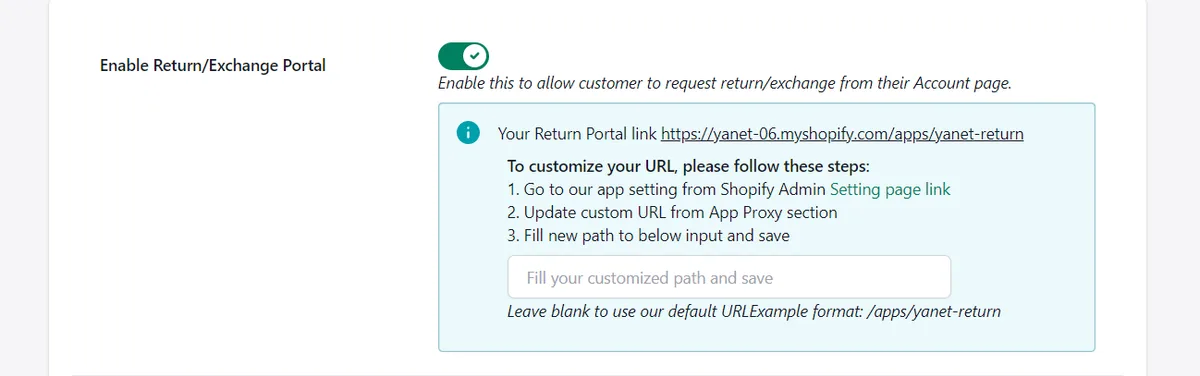
- Open the app and go to Setting > Setup the Portal.
- Enable the Return/Exchange Portal.
- Customize the Portal URL.
- Optionally upload portal banners as a single image or an auto banner slider.
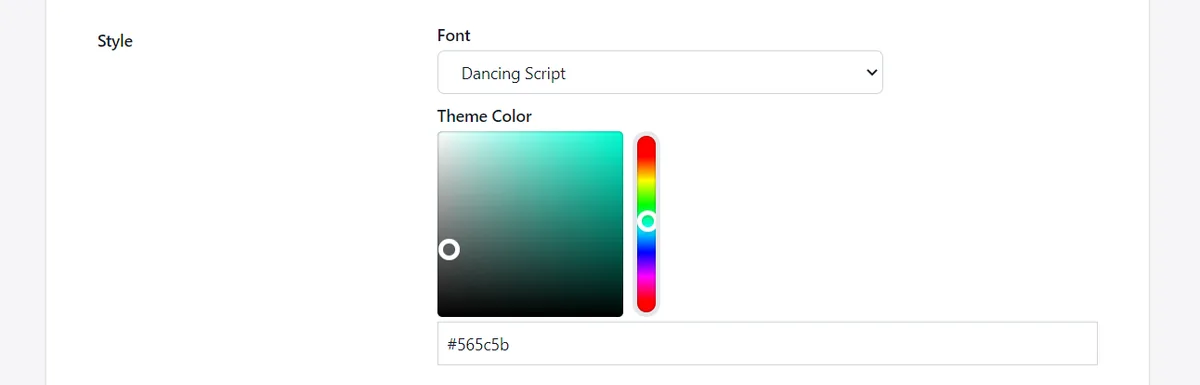
- Under Portal style, adjust the text font and button color.
- Enable the Return & Exchange policy option if you want a policy link displayed on the portal.
- Add the portal URL to your footer menu with a label such as Start a return.
Yanet supports per-product, rule-based return and exchange policies, automated email notifications at each request step, and 16 languages. Refund options can include the original payment method, store credit, discount codes, and gift cards; some options require paid plans.
Return labels are available through carrier integrations such as FedEx, Shippo, and EasyPost. The free plan has limited monthly requests, so review your needs before choosing a plan.
For more planning guidance, see our guide to a self-service returns page. Keep the portal link near your return policy so customers can find both the rules and the next step.
Troubleshooting: Powered by Shopify Still Shows in Your Footer
If powered by shopify remains visible, work through these checks one at a time. Confirm each result before changing another setting or file.
- You edited an unpublished theme: open that theme’s preview. The live store stays unchanged until you publish the edited version.
- Your browser shows an older page: hard-refresh or test in a private window before editing again.
- Another language still has the text: default content is language-specific. Check each relevant language or locale in Edit default theme content, along with any translation workflow your store uses.
- Another file outputs the tag: search across theme files for powered_by_link and inspect every relevant match.
- A block or custom section adds its own wording: inspect the footer’s blocks and custom content. Removing the standard tag will not remove separately entered text.
- A code change caused an error: restore the previous version or backup, then repeat only the smallest necessary edit.
Also check whether you are viewing a different template from the one you edited. A dedicated password layout, for example, may not use the main footer section.
Once the powered by shopify footer is gone, stop making attribution-related edits. Extra deletions can create unnecessary problems without improving the result.
Quick Footer Checklist
- The original theme is safely backed up.
- The correct theme has been edited and previewed.
- The powered by shopify line is removed or replaced as intended.
- Desktop and mobile spacing look correct.
- Relevant languages and separate templates have been checked.
- Policy, contact, and returns links open correctly.
- Copyright details remain accurate.
- Your changes are recorded for future theme updates.
Conclusion
Start with the no-code text method to remove powered by shopify. If that does not work, locate the attribution tag in Dawn or your theme’s relevant footer file. Duplicate first, preview carefully, and check other templates before publishing.
Use the space for information customers need: policies, contact details, and a clear returns link. Try Yanet Returns & Exchanges to create a branded self-service portal, then add its URL to your footer menu so customers can find it.
FAQ
Can I remove Powered by Shopify from my store?
You can remove the visible powered by shopify attribution through your theme’s content settings or footer code, depending on the theme. Start with the no-code method on a duplicate theme, save, and preview the result. If the wording remains, inspect the relevant Liquid file. Check Shopify’s current documentation for guidance that applies to your store and theme.
How do I remove Powered by Shopify in the Dawn theme?
First try Edit default theme content and search for the attribution wording. Clear the matching field or try a single space, then save and preview. If needed, open sections/footer.liquid in a duplicate Dawn theme, search for powered_by_link, and remove {{ powered_by_link }}. Keep the surrounding copyright markup intact and test desktop and mobile layouts.
Will removing Powered by Shopify break my theme or checkout?
Removing powered by shopify is a footer text/link edit, not a checkout change. However, deleting the wrong Liquid expression or surrounding HTML can damage the footer layout or cause a theme error. Duplicate your theme first, make the smallest possible change, and preview before publishing. If something looks wrong, restore the previous version or your untouched backup rather than continuing to edit.
Why does Powered by Shopify still appear after I removed it?
You may have edited an unpublished theme, loaded a cached page, or changed only one language’s content. Another template, custom section, or theme app block may also display its own attribution text. Confirm the theme you are viewing, try a private window, and search the code across files for powered_by_link. Check the password page separately if your store uses it.