
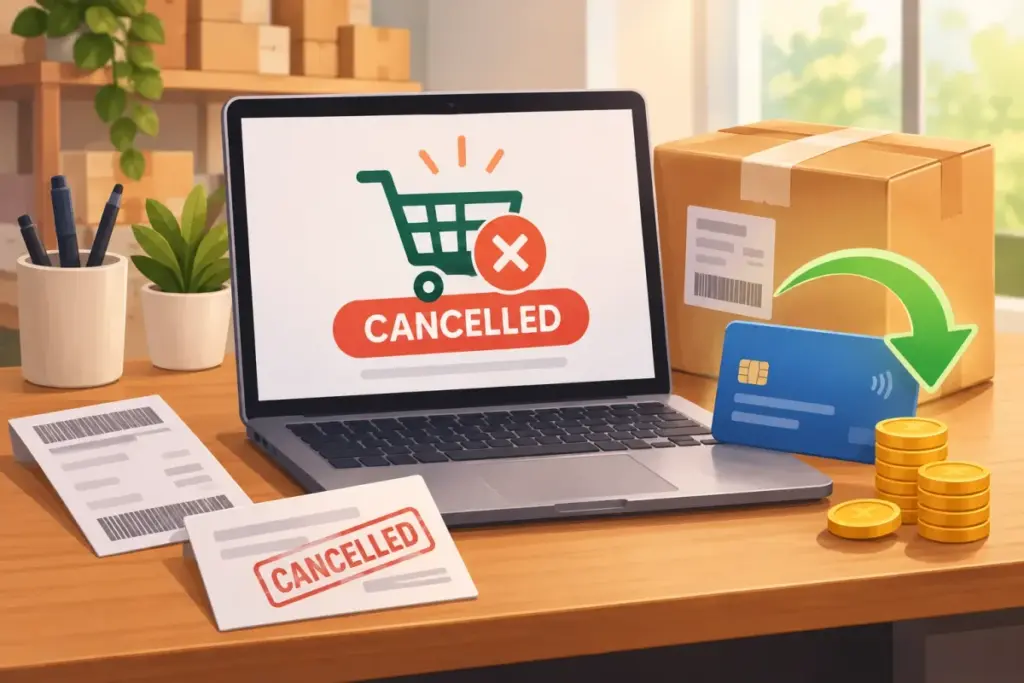
A shopify cancel order workflow starts with checking whether the parcel has shipped and whether payment was collected. This guide explains when to cancel, when to issue a refund, when to arrange a return, and how to check the refund amount before confirming anything.
The key is to separate stopping an order from sending money back. For delivered purchases, the Yanet Returns & Exchanges app breakdown explains the return-management side. Start below with the order’s actual status, rather than treating every customer request as a cancellation.
Shopify Cancel Order vs Refund vs Return: Which One Do You Need?
A Shopify cancel order decision involves two separate questions: should fulfillment stop, and does the customer need money back? Cancelling, refunding, and returning address different parts of the transaction.
- Cancel: Stop an unshipped, unfulfilled order because the customer changed their mind, payment failed, fraud is suspected, stock is unavailable, or staff made an error.
- Refund without return: Send money back for goodwill, a price adjustment, a lost or damaged parcel, or a low-value item that is not worth shipping back. This does not retrieve the goods.
- Return: Arrange for an already fulfilled or delivered item to come back. Inspect it and decide on the appropriate refund or exchange.
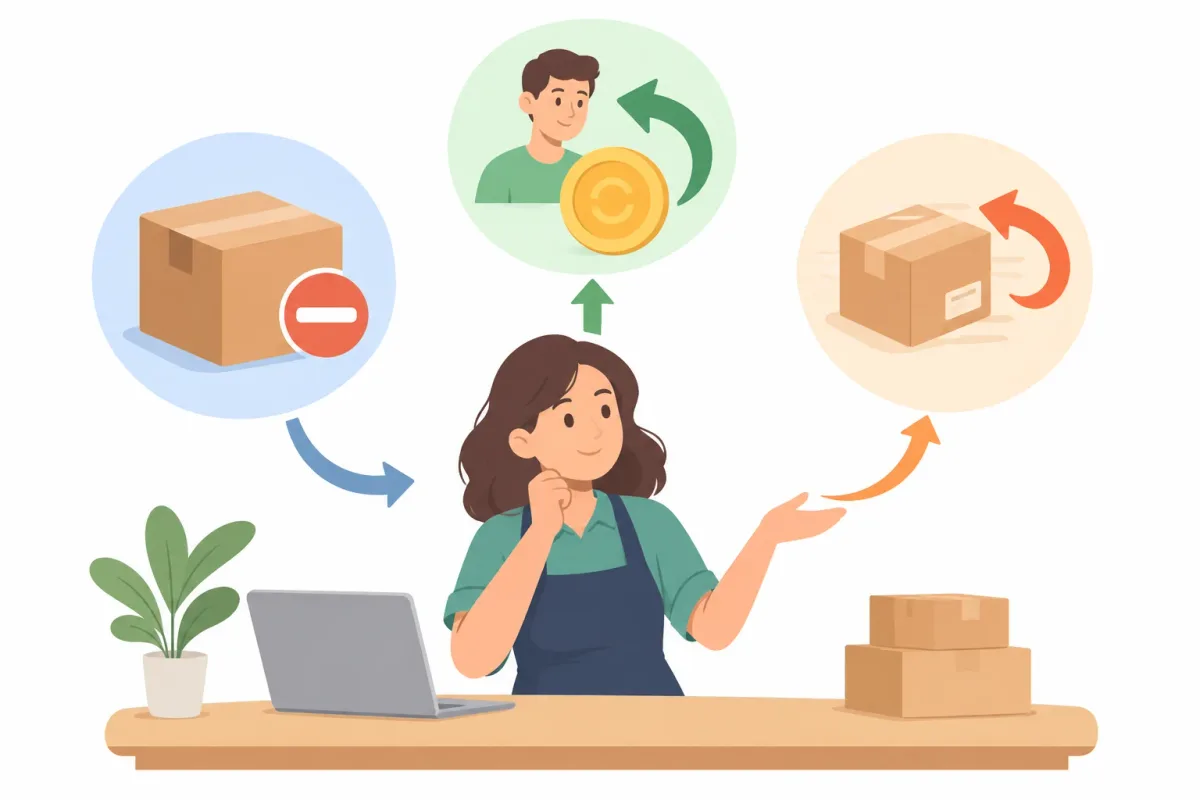
For example, a customer who ordered the wrong size before dispatch may need cancellation. Someone holding the wrong size after delivery needs a return or exchange instead.
Do not use the Shopify cancel order process simply because the customer says “cancel.” Ask whether the parcel has left your operation. That answer determines whether you should stop fulfillment or manage what happens after shipment.
Before You Cancel an Order on Shopify: A Quick Checklist
Before starting a Shopify cancel order action, review the order and any connected warehouse activity. An unfulfilled status deserves a closer look if staff have already packed or handed over the parcel.
- Fulfillment: Is everything unfulfilled, partly fulfilled, or already fulfilled?
- Physical shipment: Are items still on the shelf, packed, awaiting collection, or already with the carrier?
- Payment: Does the order show paid, pending, or authorized? The available action may depend on the payment provider.
- Customer contact: Has someone already promised a cancellation, refund, replacement, or exchange?
- Discounts and gift cards: Check what was used and review the actual amount paid rather than the original product price.
- Inventory: Should the units return to available stock, and are they physically available to sell?
Record anything another staff member needs to know before they act. A short note such as “parcel still in packing area; customer requested cancellation” helps prevent conflicting actions.
This Shopify cancel order check is especially useful when support and fulfillment work separately. Get confirmation from the person handling the parcel instead of assuming that an admin status describes its physical location.
How to Cancel an Order on Shopify Step by Step
Once you have confirmed that cancellation is appropriate, follow the general Shopify cancel order sequence below. Pause fulfillment first if your team can still stop the parcel.
- Open Shopify admin. Go to Orders and open the correct order. Match the order number and customer details before continuing.
- Review its status. Check fulfillment and payment again, including any earlier refund activity.
- Open More actions, then Cancel order. Review the cancellation dialog rather than confirming immediately.
- Choose the payment action. Decide whether to refund the payment as part of cancellation, where that option is available.
- Choose whether to restock. Base this on whether the items are available for sale, not simply whether the customer paid.
- Select a cancellation reason. Examples include customer changed or cancelled order, payment declined, fraud, items unavailable, staff error, or other. Keep this accurate for your records.
- Choose whether to notify the customer. Check the notification-email option, then review your selections and confirm.
Menu names and available options can vary slightly. Before completing an unfamiliar Shopify cancel order action, consult Shopify’s guide to refunding and cancelling orders for the current instructions and restrictions.
Cancellation cannot be undone: the order is cancelled and archived. Double-check the order number and intended payment action before confirming, particularly when several similar orders appear in the queue.
Cancelling an unfulfilled order
An unfulfilled order is the usual candidate for the Shopify cancel order workflow. Still, confirm the parcel has not physically shipped and tell the packing team to stop work before proceeding.
For example, if an item is unavailable, agree on cancellation with the customer, review the payment, and decide whether any inventory adjustment is appropriate. Do not restock unavailable units just to complete the dialog.
What if the order is partially fulfilled or already fulfilled?
Fulfilled orders cannot be cancelled the normal way. Handle them through a refund or return, depending on whether the goods need to come back.
For a partly fulfilled order, only the unfulfilled items can be dealt with before shipping. Check your admin for the available actions and separate those items from anything already dispatched.
Cancelling orders with pending or authorized payments
A pending or authorized payment is not the same as collected money. The appropriate Shopify cancel order payment action may involve a void rather than a refund, depending on the gateway and transaction status.
Check with your payment provider if the correct action is unclear. Do not promise the customer that a payment hold will disappear at a particular time.
How to Refund the Customer Correctly When You Cancel
For a paid order, the Shopify cancel order workflow may let you cancel and refund together. Other situations call for a partial refund or a refund without cancellation. Choose the action that matches what you intend to resolve.
Before you refund the customer, review three components: items, shipping, and taxes. Confirm the quantities and amounts shown rather than assuming the full order total is always appropriate.
Suppose the order shows $60 in items, $5 shipping, and $6 tax. A full refund would account for all three components. If you intend to refund only part of the purchase, verify the corresponding shipping and tax treatment displayed before confirming.
Discounted purchases need the same care: use the amount actually paid. Review any gift-card use and previous refunds so the Shopify cancel order action does not produce an unintended amount.
Restocking is a separate inventory decision. Unshipped, sellable units may belong back in stock; a lost parcel or damaged item should not become available inventory merely because you issued a refund.
Payment refunds go back to the original payment method. The time before the money appears depends on the payment provider and customer’s bank, so confirm that the refund was issued without promising exact days.
Store credit or a discount code can be alternatives when the customer agrees. Explain the proposal before substituting it for a payment refund; the Shopify store credit guide provides more context.
Common Shopify Cancel Order Mistakes
Most Shopify cancel order mistakes come from treating payment, inventory, and fulfillment as one action. Use a separate check for each.
- Refunding twice: Check whether cancellation already included a refund before issuing another one.
- Forgetting to restock: Review inventory separately and restore only units that are genuinely available for sale.
- Cancelling after shipment: Confirm the parcel’s location first; switch to a return or refund when it has shipped.
- Not telling the customer: Send a clear update explaining the cancellation and payment outcome.
- Picking the wrong reason: Select the reason that reflects what happened, not whichever option is quickest.
- Skipping your policy: Check the published terms before agreeing to an exception or refusing a request.
A final Shopify cancel order review should answer three questions: has shipment stopped, is the payment action correct, and does the customer know the result? If any answer is unclear, investigate before closing the conversation.
When the Customer Wants to Send the Item Back: Let Them Self-Serve
Once an order is fulfilled, the Shopify cancel order route is no longer the right tool. The customer needs a return or exchange request, with a clear way to identify the item and explain what they want.
Managing every Shopify return request through email means repeatedly asking for order details, item information, and reasons. A self-service portal gives the customer a structured starting point and gives your team a request to review.
Yanet Returns & Exchanges helps automate return and exchange handling for fulfilled orders. It is not a tool for cancelling unshipped orders or voiding payments.
The customer-account “Create Request” option appears only for fulfilled orders that meet your rules. Keep that distinction clear in support instructions so customers do not expect the return portal to stop an unshipped parcel.
What customers do and what you do in Yanet
To submit a Shopify return request, the customer opens the Return Portal, finds the order, and picks an eligible item. They choose return or exchange, select a reason and an available refund or exchange solution, then submit.
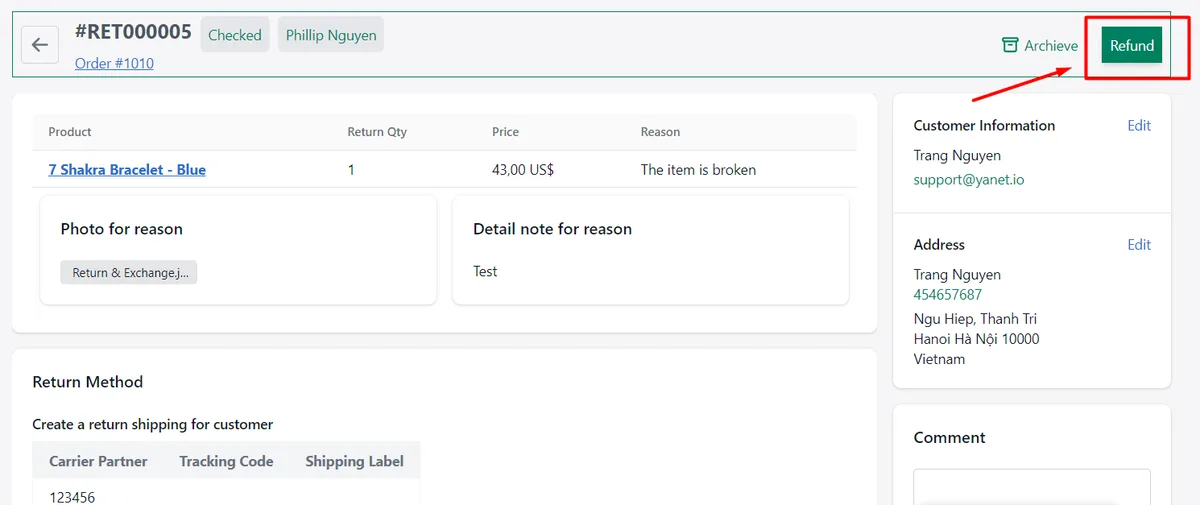
Your team then handles the request in these phases:
- Approve or Decline: Open the request detail page and make the decision. Only approved requests move forward.
- Mark as Received: Click this when the returned item arrives.
- Mark as Checked: After checking the item, decide whether to restock it and select the warehouse.
- Refund: Click Refund, confirm the amount, and send the money through the customer’s selected refund method.
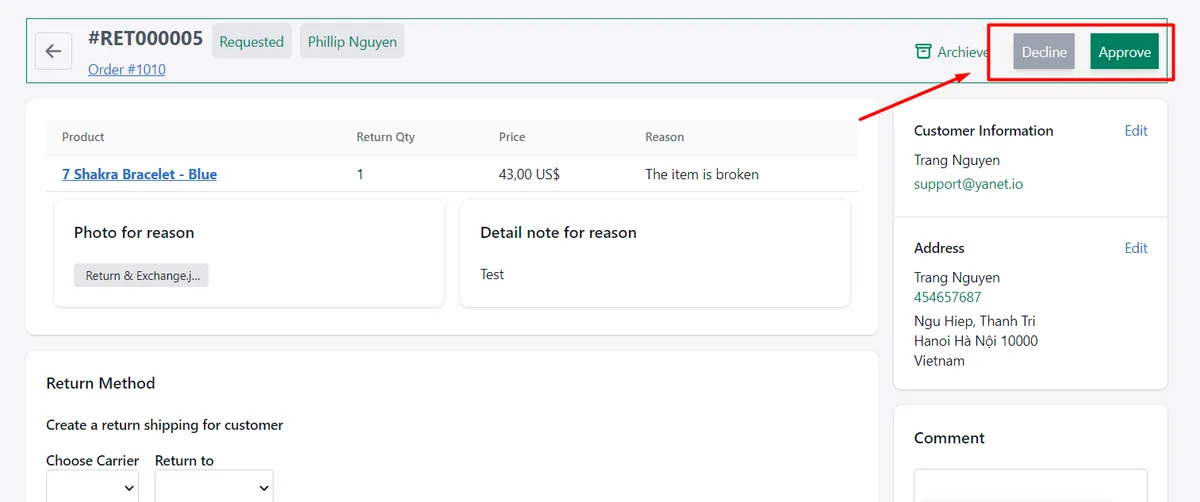
If email notifications are enabled, the customer receives an update after each phase. This separates approval from receipt and inspection, rather than treating the initial request as confirmation that the goods are back.
Rules and refund methods
Under Settings > Rules, eligibility can depend on order date, fulfillment date, product tags, and collections. Set different policies for products or situations, including non-returnable items and return windows.
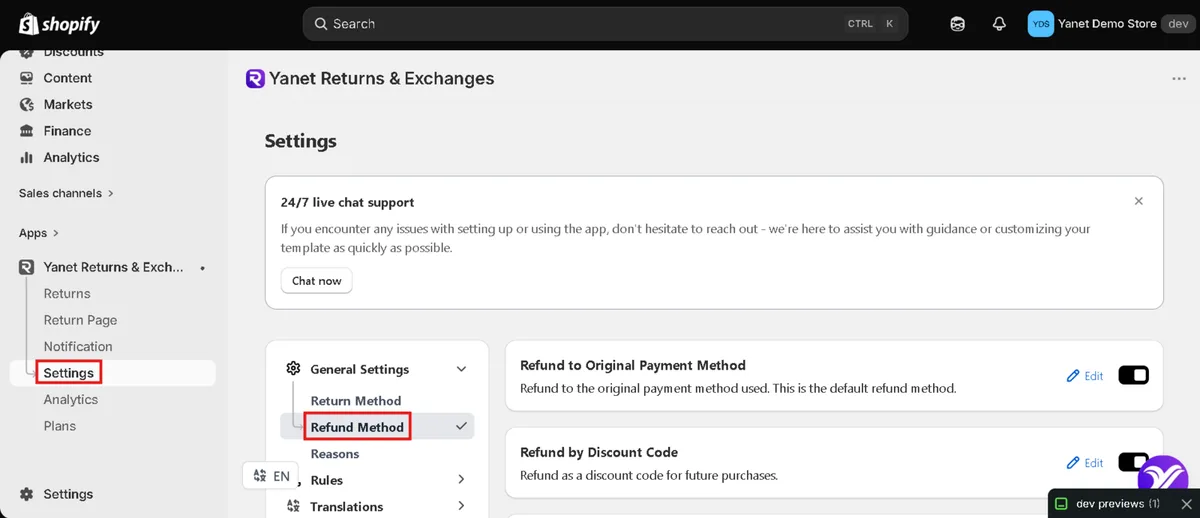
Configure solutions under Settings > Refund methods. Store credit and discount code refunds are included in Free; gift code refunds are available on Professional and Ultimate. Present options that match your policy and the agreement with the customer.
Staff can also create a Shopify return request on a customer’s behalf from Returns > Create Request. This is useful when a customer contacts support first but you still want to manage the return through the same process.
Ultimate includes Automation Approval, configured under Settings > Automation. Yanet supports 16 languages, carriers EasyPost, FedEx, and Shippo, and works with customer accounts and Shopify Admin.
Keep the boundary simple: use Shopify cancel order procedures before shipment, and Yanet’s return workflow for eligible fulfilled orders. Automating approvals does not turn a return request into an order cancellation.
Yanet Returns & Exchanges Plans
Choose a plan based on return volume and the exchange or refund options you need. These plans support post-fulfillment returns, not the Shopify cancel order action.
- Free — $0: Six requests per month, a customizable return portal, rules and reasons, same product/variant exchanges, store credit and discount code refunds, multiple languages, email notifications, and multiple shipping carriers.
- Professional — $9.99/month: 80 free requests per month, then $0.20 per extra request. Includes different product/variant exchanges, packing slip, gift code refunds, return/exchange fees and rewards by conditions, priority support, and a 14-day free trial.
- Ultimate — $29.99/month: Unlimited requests, all Professional features, Automation Approval, dedicated priority support, and a 14-day free trial.
Start by identifying the options your customers actually need. A small request volume and straightforward exchanges may call for a different plan than a store that needs automated approvals or different-product exchanges.
Best Practices for Handling Cancellations and Refunds
A reliable Shopify cancel order process starts before the next request arrives. Publish a clear cancellation window and explain that a request may become a return once fulfillment has happened.
- Act quickly: Route cancellation messages to someone who can check and stop fulfillment before dispatch.
- Always communicate: Tell the customer what was cancelled, what amount was refunded, and whether anything else is required.
- Keep reasons consistent: Use accurate cancellation and return reasons so staff can identify recurring problems.
- Review patterns: Look for repeated size issues, unavailable products, packing errors, or unclear descriptions.
- Separate policies: Explain cancellation and return procedures independently, including where customers should start each one.
- Use self-service appropriately: Direct eligible post-fulfillment requests to the return portal, not unshipped cancellation requests.
For EU stores, review the EU withdrawal button as a separate policy consideration. This is not legal advice; check which obligations apply to your business rather than assuming an operational workflow covers every requirement.
Finally, test your Shopify cancel order handoff internally. Ask support and warehouse staff to explain who checks the parcel, who handles payment, and who sends the final message. Resolve gaps before a customer is waiting.
Conclusion
A sound shopify cancel order workflow separates fulfillment, payment, and inventory. Cancel before shipment when appropriate, check the intended refund across items, shipping, and taxes, and make a deliberate restocking decision. After fulfillment, use a return or refund instead of trying to reverse the shipment through cancellation.
Give customers a clear next step at every stage. For eligible fulfilled orders, install Yanet Returns & Exchanges from the Shopify App Store to offer self-service requests and manage approval, receipt, inspection, and refund in a structured workflow.
FAQ
Can I cancel a Shopify order after it has shipped?
Fulfilled orders cannot be cancelled the normal way. Check the shipment’s actual status and arrange a return or refund as appropriate. For partly fulfilled orders, check your admin for actions available on the unfulfilled items.
Does cancelling an order on Shopify automatically refund the customer?
Do not assume it does. Review the payment option in the cancellation dialog and confirm what happened afterward. The appropriate action can differ for paid, pending, or authorized payments, depending on the payment provider.
Can I undo a cancelled order on Shopify?
No. Cancellation cannot be undone, and the order is cancelled and archived. If the customer still wants the purchase, you may need to create a new or draft order; check your admin and confirm the payment arrangements before proceeding.
How do I let customers request returns without emailing me?
Use Yanet’s Return Portal for eligible fulfilled orders. Customers find their order, select an eligible item, choose return or exchange, provide a reason, select an available solution, and submit the request. Eligibility depends on your configured rules.
Does Yanet Returns & Exchanges work on the free plan?
Yes. Free costs $0 and includes six requests per month, a customizable return portal, rules and reasons, same product/variant exchanges, store credit and discount code refunds, multiple languages, email notifications, and multiple shipping carriers.