

Free Shopify Themes let you launch without buying a storefront design, but choosing one still takes care. Your theme affects how shoppers browse products, read descriptions, and move toward the cart. A layout that looks convincing in a demo may feel different once you add your own photography, product names, and collections.
This guide compares free shopify themes by store type, then explains how to assess speed, customization, and catalog fit. You will also learn how to add a theme, prepare it for launch, and recognize when a paid theme or developer might be worth considering.
The goal is not to find one universal winner. It is to choose a practical starting point that your team can maintain while handling everyday work such as product updates, orders, and returns.
What Are Free Shopify Themes, and What Do You Actually Get?
The free themes covered here are available at no cost in the official Shopify Theme Store and are built and maintained by Shopify. You can add one to your store, preview it with your own products, and customize its appearance before publishing.
The online store theme editor lets you arrange sections and blocks without writing code. These controls help you assemble pages, adjust branding, and organize content within the theme’s available options. More specialized changes may require Liquid knowledge or developer help.
If you search for “shopify themes free,” you are looking for the same category you can browse using the Theme Store’s free filter. Free refers to the theme itself, not to every cost involved in operating a Shopify business.
Before choosing between free shopify themes, distinguish editor settings from custom development. Review Shopify’s themes documentation if you need help understanding how themes, sections, and customization work.
How to Choose Free Shopify Themes: Speed, Customization and Fit
Speed and performance
When comparing free shopify themes, test the storefront you intend to build rather than relying on a theme’s name. Large images, heavy homepage sections, and extra apps or scripts can all affect the experience. A simpler page often gives shoppers a clearer path, too.
Use compressed, appropriately sized images and avoid adding sections just to fill space. Preview real product pages on your phone, preferably using an ordinary mobile connection. Check whether images appear promptly and whether menus, variant selectors, and cart controls respond comfortably.
Customization options
Inspect the editor before committing. Check where sections and blocks are available, how presets or style variations change the starting design, and what you can adjust in the header, footer, and product layout. Do not assume that an attractive demo detail is editable in the way you need.
Switch between desktop and mobile previews while making changes. Try your actual logo, a long product title, and a realistic description. If a basic brand requirement immediately needs custom code, another theme may be easier for your team to maintain.
Fit for your catalog
Evaluate free shopify themes with representative products, not just your simplest item. Small catalogs need clear product presentation; larger catalogs need an understandable browsing structure. Test products with many variants, long names, or detailed explanations, and consider whether articles or buying guides are central to your sales process.
Best Free Shopify Themes by Store Type
This is a shortlist, not a ranking of the best free shopify templates. These groupings suggest where to begin testing, rather than guaranteeing suitability for a particular industry. For all free shopify themes below, check the live demo and current Theme Store listing before deciding.
All-purpose starter: Dawn
Dawn is Shopify’s well-known default free theme and a flexible baseline for many stores. Beginners can use it as a reference when comparing other options. Test whether its starting layout presents your products clearly without requiring extensive rearrangement.
Fashion and lifestyle with bold imagery: Refresh and Colorblock
Refresh and Colorblock are worth testing if your fashion or lifestyle brand depends on strong imagery. Compare how your own campaign photographs and product images work in each demo’s visual direction. Check that the design still feels coherent when some products have simpler photography.
Handmade, art and maker brands: Craft and Studio
Craft and Studio are sensible candidates for handmade goods, art, and maker-led businesses. Test how each presents product details alongside your creative story. Make sure information about materials, dimensions, or production methods remains easy to find rather than getting lost beneath imagery.
Health, beauty and wellness: Sense
Sense is worth exploring for health, beauty, and wellness stores. Preview your actual packaging photography and product explanations rather than judging by the demo’s color palette. Check whether shoppers can comfortably read usage instructions and compare relevant product options.
Food and drink or small catalogs: Taste and Spotlight
Taste and Spotlight are useful starting points for food, drink, or focused catalogs. Test whether a small selection feels complete rather than sparse. Keep essential information, such as quantities and product descriptions, clear within the layout you build.
Sports and active lifestyle: Ride
Ride is a candidate for sports and active-lifestyle brands seeking a stronger visual direction. Try both action photography and straightforward product shots. The design should support the product information shoppers need, not depend entirely on dramatic images.
Larger catalogs: Origin and Crave
Include Origin and Crave in your tests if you have a larger catalog. Treat this as a comparison starting point, not a guarantee of catalog suitability. Build representative collections and check navigation, long titles, and the path between related categories.
Content-led stores: Publisher
Publisher is worth testing when articles and brand storytelling are important parts of your store. Preview a complete article alongside product and collection pages. Check that readers can move naturally from useful content toward relevant merchandise.
The Theme Store lineup changes, so confirm which free shopify themes are currently available. Shortlist two or three and compare them using the same products, images, and page content.
Quick Comparison Table of Free Shopify Themes
Use this table to decide what to inspect first. “Best for” describes a possible starting fit, not an exclusive use case or a promised feature set.
| Theme | Best for | What to test first |
|---|---|---|
| Dawn | General-purpose launches | Your everyday product page |
| Refresh | Image-led lifestyle stores | Real product photography |
| Colorblock | Bold fashion presentation | Brand colors and collection imagery |
| Craft | Handmade businesses | Product details and maker story |
| Studio | Art and creative brands | Artwork proportions and descriptions |
| Sense | Beauty and wellness | Packaging images and explanations |
| Taste | Food and drink | Product information clarity |
| Spotlight | Focused catalogs | Browsing a small selection |
| Ride | Active-lifestyle brands | Action and product imagery together |
| Origin | Larger-catalog testing | Collection organization |
| Crave | Larger-catalog testing | Navigation across categories |
| Publisher | Content-led stores | Article-to-product browsing |
Free Shopify Themes Download: How to Add a Theme to Your Store
A search for “free shopify themes download” can make the process sound like installing a file manually. Usually, you add the theme directly from the Shopify Theme Store to your store instead.
You can keep your current live theme while preparing another theme in your library. Work on an unpublished version or copy, preview your changes, and publish only when the storefront is ready.
- Open your theme area. In Shopify admin, go to Online Store > Themes.
- Browse free options. Choose Add theme and explore free themes, or visit the Theme Store and filter by free.
- Inspect the demo. Explore product and collection pages, then choose a preset where available.
- Add it to your library. Keep your existing live theme in place while you work.
- Customize the draft. Add branding, arrange sections, and preview real products in the editor.
- Check mobile. Review navigation, images, product options, and the cart on your phone.
- Publish when ready. Confirm essential pages and links before making the theme live.
Be cautious with third-party sites offering “free shopify themes download” ZIP files. They can contain outdated or unsafe code and may come without support. Stick to the official Theme Store rather than accepting an uncertain file source.

Free vs Paid Themes: When the Best Free Shopify Templates Are Enough
For a new store with standard layouts and a tight budget, free shopify themes can be enough to launch. Your first priority is usually clear product information, usable navigation, and a reliable buying journey—not a highly specialized design.
A paid theme or developer becomes worth considering when a specific requirement remains unresolved. Examples include an unusual page layout or a particular feature you cannot achieve with the available editor controls. Write down the requirement before paying, then confirm that the proposed solution actually addresses it.
Theme cost is only one budget layer alongside your Shopify plan, apps, and domain. Use the Shopify pricing guide to think about the broader operating budget rather than treating a free theme as a free store.
The best free shopify templates are sufficient when they support your real workflow. If searching “shopify themes free” has become an endless comparison exercise, return to your must-have list and choose the option that meets it with the least extra work.
How to Customize Free Shopify Themes Without Code
Start customizing free shopify themes with real content, not decorative placeholders. A homepage built around demo photography can fall apart when your own images have different proportions or your product names occupy more space.
- Load representative products first. Include a long title, a variant-heavy item, and a detailed description.
- Set colors and fonts. Keep text readable and make buttons easy to recognize.
- Build a focused homepage. Use a few purposeful sections rather than every available option.
- Simplify navigation. Use clear collection names that make sense without explanation.
- Optimize images. Compress files and keep image proportions consistent where appropriate.
- Test mobile and cart behavior. Select variants, change quantities, and review the cart.
- Write policy pages. Explain shipping, returns, exchanges, and contact options before launch.
For a broader walkthrough of building the storefront, see the Shopify website builder guide. Work through the essential pages before spending time on minor decorative adjustments.
When comparing free shopify themes, repeat the same checks in each candidate. A consistent test makes differences easier to judge than switching between polished demos with unrelated products.
Common Mistakes When Choosing Free Shopify Themes
Most avoidable problems with free shopify themes come from choosing too quickly or customizing without a clear plan. Watch for these mistakes:
- Choosing from demo photos only. Replace them with your own images before judging the result.
- Installing too many apps early. Add tools for identified needs, then reassess their effect on the storefront.
- Ignoring mobile. Check menus, long titles, buttons, and product options on an actual phone.
- Forgetting policies and returns information. Make practical buying information easy to find before checkout.
- Switching repeatedly after launch. Gather specific problems first; a new design will not automatically solve unclear content.
When a search for “shopify themes free” produces another appealing demo, ask what it would improve for your shoppers. Avoid replacing a workable design simply because a different color scheme looks fresh.
After You Pick a Theme: Add a Returns and Exchanges Portal
Choosing among free shopify themes addresses the storefront, but it does not finish your post-purchase planning. Customers also need a clear way to request a return or exchange and understand the applicable policy.
Yanet Returns & Exchanges provides a branded, customizable self-service return and exchange portal page. It supports per-product, rule-based return and exchange policies and automated email notifications at each step of a request.
Refund options can include the original payment method, store credit, discount codes, and gift cards, with some options on paid plans. Shipping carrier integrations, such as FedEx, Shippo, and EasyPost, support return labels. The app also supports 16 languages.
For planning the customer journey, read the Shopify return portal guide. Decide what customers should see and which policy applies before styling the portal.
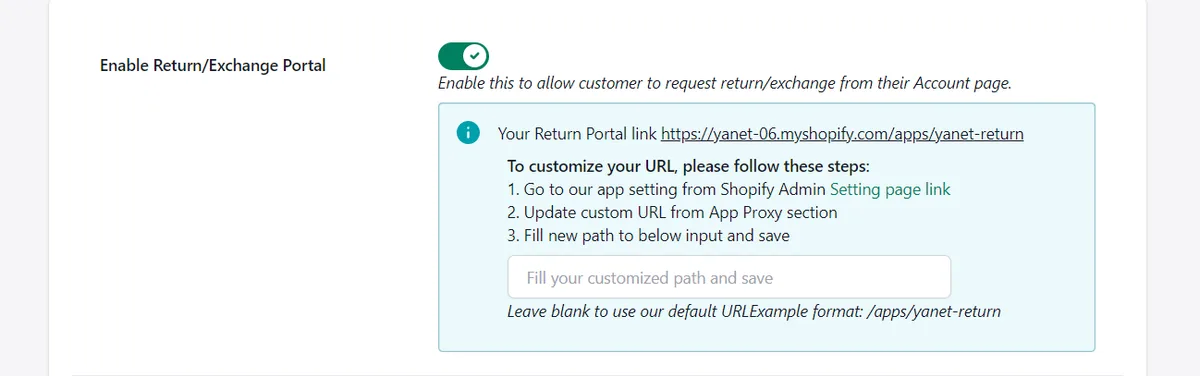
To set it up, open the app and go to Setting > Setup the Portal. Enable the portal, then optionally upload a single banner image or use an auto banner slider.
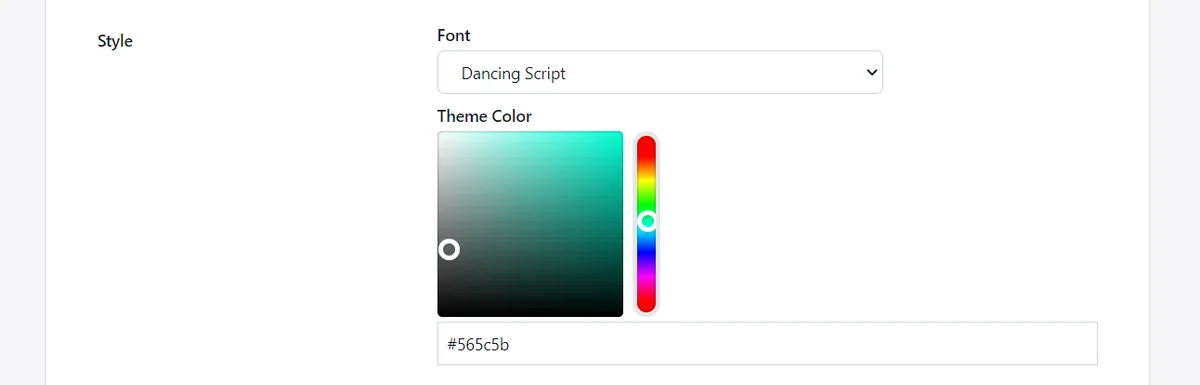
Under Portal style, change the text font and button color to match your chosen theme. Show a Return & Exchange policy link on the portal so customers can review your terms.
The free plan has a limited number of monthly requests and supports exchange for the same product or variant. Paid plans add exchange to a different product. Check that distinction against your intended policy before launch.
Conclusion
Free shopify themes provide a practical launch foundation with no-code sections and blocks. Choose by real-page performance, editor flexibility, and catalog fit. Use the shortlist to test a few candidates, add your choice through the official Theme Store, and customize with actual products rather than relying on demo content.
Plan the experience after checkout, too. Try Yanet Returns & Exchanges to give customers a branded self-service portal, then match its font and button color to your storefront.
FAQ
Are free Shopify themes good enough to launch a store?
Yes. A free theme can provide a suitable starting point when your store needs standard layouts and you can present products clearly using the available editor controls. Success depends on the content and configuration as well as the design. Before publishing, test navigation, product options, mobile pages, and the cart. Consider paid design work only when you can identify an important requirement that your chosen theme cannot reasonably meet.
What is the best free Shopify theme for beginners?
Dawn is a sensible starting point because it is Shopify’s well-known default free theme and offers a flexible baseline for comparison. It is not automatically the best choice for every catalog or brand. Test it alongside a few relevant alternatives using the same products and images. Choose the theme that makes your products clear and lets you maintain essential pages comfortably, rather than the demo you find most attractive.
Can I download free Shopify themes outside the Theme Store?
You may encounter third-party sites offering theme ZIP files, but downloading from an uncertain source introduces risks. Files can contain outdated or unsafe code, and support may be unavailable. The recommended route is to add a free theme through the official Shopify Theme Store. This also avoids confusing a legitimate free offering with an unauthorized copy of another theme. Check the current official listing before adding anything to your store.
Can I switch free Shopify themes after launch?
Yes. You can prepare another theme in your theme library while keeping the current storefront live. Customize and preview the replacement before publishing it. Re-check content held in theme settings and sections, because your new layout may need different setup or arrangement. Test navigation, product pages, mobile presentation, and cart behavior again. Keep a clear list of what the change should improve so that switching has a practical purpose.