

A shopify refund subscription request requires two decisions: which charges to return and whether future renewals should stop. This guide explains how to refund one billing cycle or every affected order, avoid refunding the wrong renewal, and use Yanet’s return and refund request workflow where it fits.
Start with the specific order, not just the customer’s name or subscription product. Then handle any cancellation separately in your subscription app. Keeping those tasks distinct helps your support team return the correct amount without accidentally leaving future charges active.
What a Shopify Refund Subscription Really Means
A shopify refund subscription process involves two separate records: the order that collected payment and the recurring contract that controls future renewals. Refunding the first does not necessarily change the second.
In most subscription setups, each renewal creates its own Shopify order. A customer who has received four monthly deliveries will therefore usually have separate orders for those billing cycles. Refunding the fourth subscription order returns money against that charge; it does not automatically refund the other three.
The recurring contract is managed in the subscription app you use. Always check that app when a customer wants to stop receiving products or paying for future cycles. Do not treat a refunded order as proof that the subscription has ended.
For example, a customer might report a damaged June delivery but still want July’s shipment. That shopify refund subscription request calls for reviewing June’s order, not cancelling the ongoing arrangement. Conversely, “Please stop all future deliveries” requires a cancellation check even if no past payment needs refunding.
Before You Refund: 5 Checks to Avoid Refunding the Wrong Order
Before starting a shopify refund subscription task, establish exactly what happened. These five checks are especially useful when several renewals contain identical products and amounts.
- Confirm the disputed renewal. Ask for the order number, billing date, or delivery date. Establish whether the customer means the first order or a later renewal. Match their message to the specific order before selecting any refund action.
- Check fulfillment. Determine whether the item has shipped or was fulfilled. A charge for an unshipped cycle needs a different operational response from a delivered box that must be returned. Coordinate with fulfillment staff rather than assuming a refund stops dispatch.
- Decide the scope. Is the request for one cycle, several cycles, or everything plus cancellation? If “everything” is unclear, ask which charges the customer means before acting.
- Read the policy and customer message. Check your published refund and return conditions, then compare them with the actual request. Do not substitute store credit when the customer is asking about a payment refund without clarifying the proposed resolution.
- Inspect payment and refund history. Check the original payment and any previous full or partial refunds on that order. Calculate the remaining eligible amount so another agent’s earlier adjustment does not become a duplicate refund.
Keep a short shopify refund subscription note containing the order number, requested outcome, approved amount, and cancellation decision. For example: “Order 1048: refund this renewal only; customer wants subscription to remain active.”
How to Refund One Recurring Order in Shopify Admin
Use this route when the customer disputes a specific billing cycle. Typical examples include one damaged delivery or a renewal charged after the customer intended to cancel. In the latter case, investigate the cancellation separately rather than assuming the refund resolves it.
For a shopify refund subscription adjustment in Shopify admin, follow this general sequence. Menu labels and available controls can change, so check Shopify’s guide to refunding and cancelling orders against the screen you see.
- Open Orders. Locate the exact order number identified during your checks.
- Open the subscription order. Compare its date, products, payment, and fulfillment details with the customer’s message.
- Click Refund. Work from the disputed order, not another renewal with the same contents.
- Choose the items and quantities. Include only what you intend to refund, and review shipping if applicable.
- Add a reason or note. Record which cycle is affected and why you are returning the amount.
- Review the total. Check products, shipping, tax, and previous adjustments before confirming.
- Confirm the refund. Check the resulting order record and record the outcome for your team.
A one-cycle shopify refund subscription example: the customer’s May and June orders were fine, but July’s box arrived damaged. Open July’s order and assess that delivery only. Do not refund June simply because it appears next to July in the customer’s order history.
Finally, tell the customer which order was refunded and whether the subscription remains active. A precise confirmation prevents “your refund is complete” from being mistaken for “your subscription is cancelled.”
How to Refund All Recurring Orders and Cancel a Subscription
When a shopify refund subscription request covers past charges and future renewals, use a two-part process. First stop future billing through the subscription app; then work through the affected Shopify orders.
- Cancel a subscription in the subscription app. Complete the cancellation yourself where your setup permits, or have the customer do it. Check the resulting subscription state rather than relying on an intention to cancel.
- Check for an imminent renewal. Establish whether another renewal is already scheduled or processing. Cancellation may not resolve work already underway, so identify any newly created order before finalizing your refund list.
- Refund each affected order separately. Open each past order, review its remaining refundable amount, and process the agreed refund one order at a time.
- Reconcile your list. Write down each refunded order number, amount, and outcome. Compare the completed list with the scope agreed with the customer.
Stopping future charges first reduces the risk of a new renewal arriving halfway through your work. If one is already processing, check your subscription app and the related order before deciding what additional action is necessary.
For a multi-order shopify refund subscription case, avoid recording only a single combined total. An order-by-order record shows which payments were addressed and helps another support agent investigate any follow-up without repeating a refund.
Partial Refunds, Shipping and Tax on a Subscription Order
Not every shopify refund subscription request justifies returning the full charge. A partial refund may fit one affected item in a bundle, a late delivery adjustment, or a goodwill gesture. Explain what the amount covers so the customer understands the resolution.
Suppose a recurring delivery contains three products and only one is damaged. Review the affected item and quantity rather than automatically refunding the entire subscription order. If you propose a goodwill amount instead, record that decision separately from the value of returned goods.
Decide explicitly whether shipping is included. Consider your published policy, the reason for the refund, and what was agreed with the customer. Do not assume refunding a product automatically represents your intended treatment of shipping.
Tax also needs its own check in a shopify refund subscription calculation. Yanet’s Refund product tax feature refunds tax tied to each returned product, such as VAT on that line item. It does not cover shipping tax, import duties, or whole-order tax.
You can enable this feature in Rules > Return Rule. Customers see an estimated refund tax in the portal, not a guaranteed final amount. The merchant reviews and can edit tax per item on the Approve page. This feature is available on higher paid plans, not on the Free plan.
Before confirming any partial adjustment, compare the final amount with previous refunds. Record whether the remaining products, shipping charge, and subscription itself are unchanged.
Shopify Refund Subscription Workflow With Yanet Returns & Exchanges
Yanet Returns & Exchanges manages order-based return and refund requests through a customer-facing Return Portal and merchant dashboard. It does not cancel subscription contracts or manage recurring billing. If future renewals must stop, cancel the subscription in your subscription app separately.
Use this request-based workflow when a shopify refund subscription case involves a return or refund request that needs review. Match the request to the correct renewal order before progressing through the processing phases.
-
Enable the Return Page. Make the customer-facing request entry point available. Before directing customers there, check that your instructions clearly distinguish requesting a return from cancelling future subscription renewals.
-
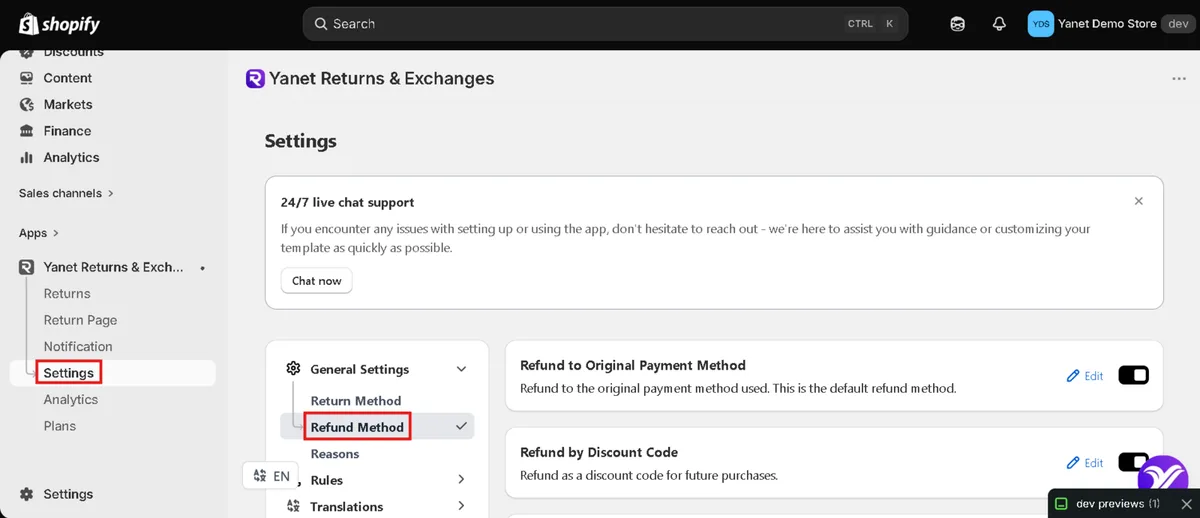
Choose the refund methods. Go to Settings > Refund methods, enable or disable the methods shown when customers create requests, and click Save. Available options depend on your plan and the selected refund solution.

Enable only the refund methods you want customers to see. Free supports store-credit and discount-code refunds; gift-code refunds are available on Professional and Ultimate. Be clear about these choices before the customer submits a request. Do not describe a discount code or store credit as money returned to the original payment method.
-
Set return rules and reasons. Configure eligibility using order date, fulfillment date, product tags, collections, and applicable timeframes. Set reasons that help explain the issue. Check that renewal orders outside your policy are not accepted under an overly broad rule.
-
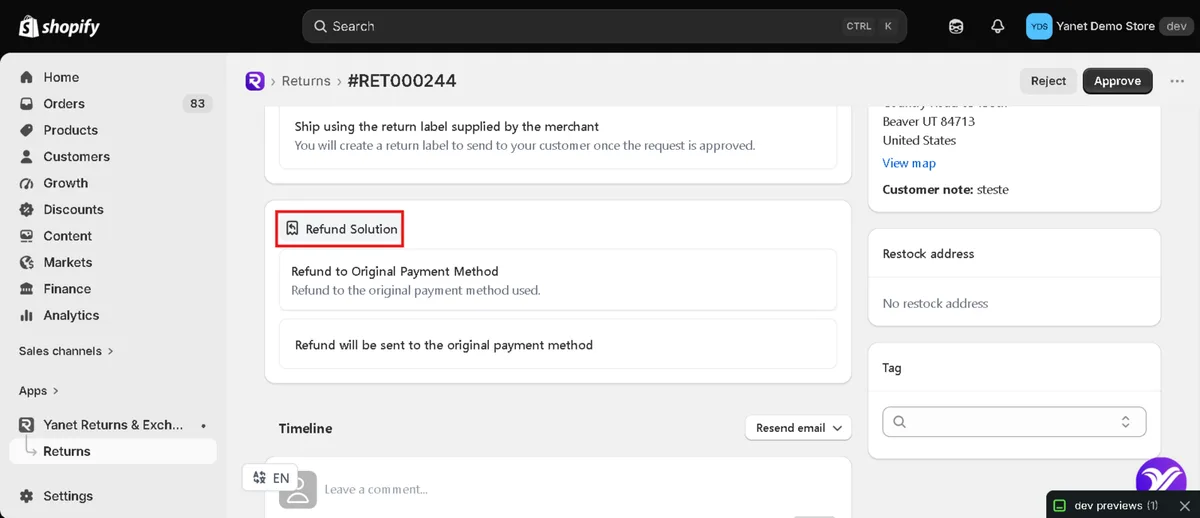
Have the customer submit a request, then review it. Open the request detail page and compare the order number, requested items, reason, and selected refund solution with your shopify refund subscription notes. Confirm that the request concerns the intended billing cycle.

Review the selected refund solution before processing. -
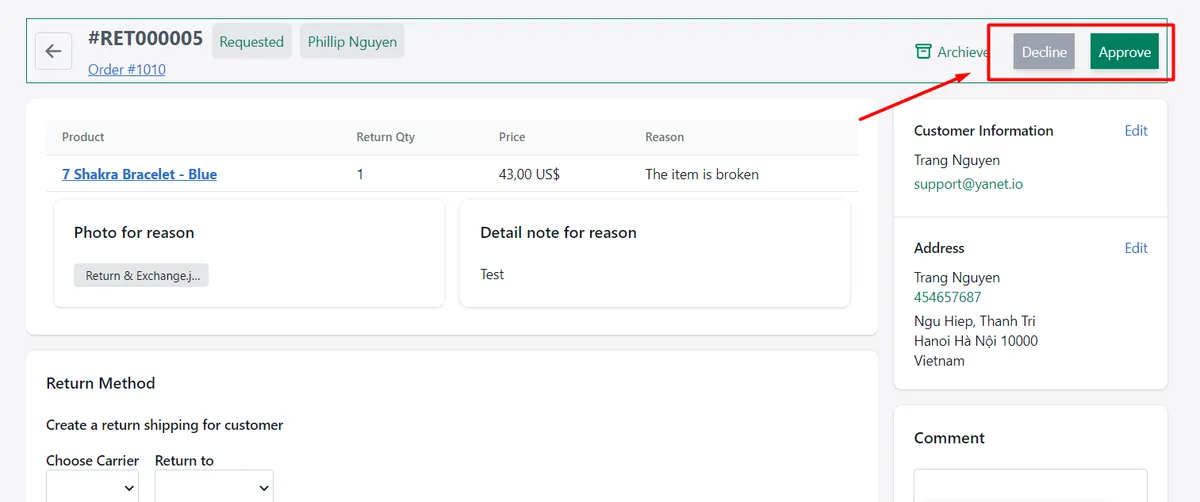
Approve or Decline. Make the decision on the Request Detail page after reviewing eligibility and the proposed resolution. Only approved requests move forward. If something is unclear, resolve it before approving rather than guessing which renewal the customer intended.

Approve or decline from the request detail page. -
Mark as Received. When the returned items are back, click Mark as Received. Keep this separate from approval: accepting a request does not mean the goods have physically arrived.
-
Mark as Checked. After checking the items, click Mark as Checked. Choose whether to restock them and select the warehouse. Base that decision on the returned items rather than automatically returning everything to inventory.
-
Process the refund and verify completion. Click Refund, confirm the amount, and send it through the customer’s selected refund method. Check the updated request status. Exact refund behavior can depend on Shopify configuration and the refund option selected.
If email notifications are enabled, customers receive an update after each processing phase. These updates concern the return request; they should not be treated as confirmation that a subscription contract has been cancelled.
If a shopify refund subscription request does not behave as expected, check its status, selected refund solution, approval, return rule, and whether your plan supports the option. Keep the request ID and order number ready for support.
For more context on the order-request workflow, read the Yanet Returns & Exchanges app breakdown. Keep your subscription-app cancellation check alongside this process, not inside it.
Common Mistakes When You Refund Recurring Orders
Most shopify refund subscription mistakes come from treating cancellation, individual payments, and return requests as one action. Use these one-line fixes when training support staff.
- Refunding without cancelling: Check the subscription app when the customer wants future charges stopped.
- Cancelling without refunding: Review and resolve the disputed past charge separately.
- Refunding the wrong renewal: Match the order number and billing date before confirming.
- Refunding twice: Check previous partial and full refunds on that specific order.
- Using inconsistent wording: Name the actual resolution—store credit, discount code, gift code, or the applicable payment refund.
- Refunding everything unnecessarily: Confirm whether the customer disputed one cycle or multiple charges.
For example, “cancel and refund” is not a complete internal instruction. Replace it with “cancel future renewals in the subscription app and refund order 1048 only.” That wording makes the intended scope clear to whoever handles the next step.
Best Practices for Subscription Refund Policies
A useful shopify refund subscription policy explains cancellations and refunds separately. State how customers request cancellation, the cutoff before renewal, and which billing cycle may qualify for a refund. Make those conditions easy to find before a customer needs support.
Explain what happens when an order has already been fulfilled or a renewal is already processing. Avoid promising that any cancellation request automatically reverses a charge or stops a parcel. Your support instructions should reflect the actual checks required.
Send reminder emails before renewal so customers have an opportunity to review their needs. Keep the message practical: identify the upcoming cycle and explain how to ask about cancellation. This is general operational advice, not a claim about Yanet’s notification features.
Where appropriate, offer an exchange or store credit for returns and exchanges as an alternative. Explain the option accurately and confirm that it fits the customer’s request rather than silently replacing the agreed resolution.
Keep order-number notes for every shopify refund subscription decision, especially when several agents share a queue. Record the refund scope, actual method, subscription cancellation outcome, and any unresolved fulfillment issue.
Test the full flow once with a test request: submission, eligibility review, approval, receiving, checking, and the selected refund outcome. Also check your customer wording. Refund and consumer-law rules vary by country; this article is operational guidance, not legal advice.
Conclusion
A reliable shopify refund subscription process starts with the correct renewal order and a clear refund scope. Check prior adjustments, review shipping and tax, and refund each affected order separately. If the customer wants future charges stopped, handle cancellation in your subscription app and verify the outcome.
For order-based return and refund requests, install Yanet Returns & Exchanges from the Shopify App Store. Use its portal and processing phases to manage requests while keeping subscription cancellation as a separate, documented task.
FAQ
Does refunding a subscription order cancel the subscription?
No, not necessarily. A refund applies to the selected order, while the recurring contract is managed in your subscription app. If future renewals should stop, cancel the subscription there and check the resulting state.
Can I refund only one recurring order?
Yes. Open the specific renewal order in Shopify admin, review its payment and previous refunds, and refund the agreed items or amount. Other renewal orders are separate, and the subscription can remain active if that is what the customer wants.
Can I refund all past subscription orders at once?
The refund is done per order. Identify every affected order and refund each separately, checking previous adjustments as you go. Keep an order-number checklist, and cancel future renewals separately if requested.
Does Yanet cancel Shopify subscriptions?
No. Yanet manages return and refund requests on orders; cancel the subscription in your subscription app. Yanet’s available refund methods include store credit and discount code on Free, with gift code available on Professional and Ultimate. Review the selected method before processing the request.